Showing posts with label SAP. Show all posts

SAP Tutorial - Basic Configuration

As promised here are some screenshots from the customization.

To start SAP Customization you can follow the menu path as shown in the image below
or you can type the Transaction Code SPRO in the command field at the top left corner of the screen. The Customizing Menu (also called the IMG - Impementation Guide) looks like the image below:

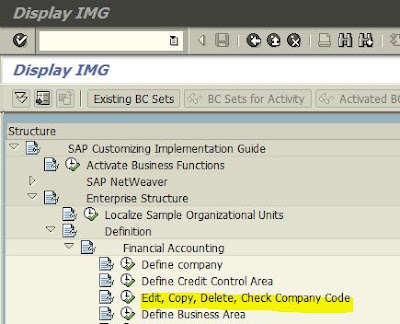
You can click on the clock icon in front of any menu item to start that part of customization. We will click the "Edit, Copy, Delete, Check Company Code" menu item (shown in picture below)


Once you click it, a new pop up window appears as below

Now you have to double click on Edit Company Code Data. Another window will appear containing already defined company codes (remember I had told you that SAP gives you some configuration settings along with some master data). Have a look at the screen below.

You can see a buttons toolbar and a table containing Company Codes and Company Names. You can select any row in this table and click the Details button (or press Ctrl-Shift-F2) to see details about that row.  See the screen below


We had selected Company Code 1000, SF Corp Limited, and then we clicked Details button, now we see the details of that row. Here we can see that SF CORP LTD is in DELHI and Country is IN for India, Primary Currency is INR and Primary Language is EN - English.

For many customizing screens, direct jump codes or commands are available and you don't have to open the IMG to access those screens, but for some there are not short codes, commands and you have to open IMG to access them.

I hope by now, you have got some idea about SAP and its configuration. My goal is to teach you both parts of SAP (Use and Operations, Configuration and Customization). From next session onwards the focus will be diverted on Core Business Components (eg. FI, SD, PP, MM) and you will be able to choose your area of interest for further learning. 

My Advice to you at this point of time, learn and master any one of the core modules. Do not attempt to learn everything as that may be highly confusing and less productive. 


Read more »

SAP Tutorial - The Building Blocks

SAP Architecture

To be understood by you clearly, I have kept it simple. SAP has got three-tier architecture, as described below:
•    Presentation Layer
•    Application Layer
•    Database Layer

Presentation Layer – This is where you will be every day while working in SAP. It may be a desktop based graphical user interface or a web based UI. No Matter what the form, its work is to get you connected to the Application Layer and through that to underlying Database Layer.

Application Layer – These are programs which perform specific tasks or operations and are grouped together in the component area (eg Material Management, Sales and Distribution). It contains applications delivered by SAP AG as well as any Customized Program developed by your implementation Partner.

Database Layer – This is where the data is stored in form of table records. It is a relational database of your choice. SAP gives you freedom to choose the database platform.

Having described the SAP Architecture in a nutshell, now let us proceed towards doing the First Highly Critical Task of mapping the organization in SAP.  This is a very crucial activity and it should be completed as soon as possible. Basically you are creating your business’s organization structure from business process perspective. Each organization which is mapped in SAP is referred to by its ORGANISATION STRUCTURE IN SAP. 

This is the most basic Building Block on which you will later build and map all your business processes. Each Organization Structure (whether in real life or in SAP) has got certain basic Elements, so what we are required to do here is map the business’s building blocks into SAP at a higher level. Let’s go into detail with help of some examples.

In Business you have a company (having its registration number) for which you create Profit & Loss Statement and Draw a Balance Sheet at the end of Financial Year. So the company is a building block on the very top. Under this company you may have a Sales Department, Purchase Department, Production Department, and Accounts Department. Let us drill down further into Sales Department and may be you have different Channels of Sales, Different Brands which you manufacture or sell, and in order to reach your customer you have created a hierarchy of elements like a Sales Depot, A Sales Office, A Salesman etc. All of these are elements in your organisation’s business process map. Now if you are asked to create an organization structure for mapping in SAP, be overly cautious and described your organization in as much detail as possible from process perspective. It will help the consultants in drawing up an Organization Structure for you in SAP. Some of the elements used in SAP Organisation Structure are given below for your reference.

Organisation Structure in SAP


Some of key elements within SAP Organization Structure are listed below, please remember this is not an exhaustive list, it represents the most basic and required elements only.

  • Client – A Legally and organizationally independent Unit. This is the top most entity in SAP at which data can be recorded. It is a partition of data in database so you can multiple instances of same tables belonging to different Clients. When SAP is installed, 3 clients  are created in the database by default, these are 000, 001, and 066. These are client tables are populated by SAP with some basic configuration data which can be copied and altered to suit the business needs. Client 000 contains basic configuration settings, Client 001 has got some test data and Client 066 is used by SAP for early watch alerts of your systems.
  • Company – The Group Company, if any, where consolidation of different legal units is done.
  • Company Code - Lowest Legal Entity for which accounting is done.
  • Business Area – A Sub unit for which separate books of account may be needed
  • Profit Centres – Used for generating Profit Reports.
  • Cost Centres - To record expenses in proper heads for reporting purpose
  • Sales Organization – A hierarchical representation of your sales channels. In SAP, sales organization comprises of following sub-elements.
    • Distribution Channel – The avenues of sales eg, Distribution, Retail, Export, Institutional etc. This is a mandatory element.
    • Sales Division – This is basically the classification of goods sold at top level, it could be a brand or it could be product category, you have to choose carefully as the data entry in sales module and reporting will be dependent on this element. This too is a mandatory element.
    • Sales Offices – Optional Elements, primarily used for reporting. Use them if you have sales offices in different cities or geographies.
  • Sales Groups – Optional Element, here you can define different Group of Sales people, mainly used for reporting purpose.
  • Sales Area – Grouping of Sales Organization, Distribution channel and Division in such a way that you can control which channel can sell what. So it is basically a derived element which controls the type of sales that can be done a customer or a group of customers.
  • Plant – It is an operational unit within the company, it can be a manufacturing unit or it can be a warehouse.
  • Storage Locations – Logical Partitions within the plant where you can store materials. A plant can have multiple Storage Locations.
  • Purchasing Organization – it is a basic element which records all purchase transactions within SAP, a purchase organisation can cater to multiple sales organisations within the company.  For example you have 2 very distinct lines of sales businesses, one sells consumer products and the other sells cars, both of these sales lines belong to the same company and you have only one purchasing department which buys raw material as well as finished goods for both of these sales lines so in sap you will have one purchase organisation. Purchase organisation can be mapped to a client, or to plant or it could be a cross company entity
    • Purchasing Group – Key for a buyer or a group of buyers, who is/are responsible for certain purchasing activities. You can use it internally as the group responsible for the procurement of a material or a class of materials or if used externally, it is the medium through which contacts with the vendor are maintained.
We are now finished with describing the Building Blocks. In the Next Session I will give you example from one of my implementations.

Organization Structure Examples....
Read more »

Creating a SAP Query

In order to create a SAP Query in SAP R/3, one has to do the following:
  • Create an User Group (SQ03 transaction)
  • Create a Functional Area/ Infosets (SQ02 transaction)


In the functional area, one has to mention how the data in the query is coming from (i.e. through a logical database or from an individual table using a program or joins etc.). Within the functional area you also have the functional groups categorizing fields from the tables into different groups.
  • Assign the User Group to the Functional Area (SQ03 transaction)
  • Create the Query based on the Functional Area (SQ01 transaction)

Read more »

How Often are SAP Projects Delivered Behind Schedule?

By Paul L Reynolds

Please deliver on time! How many SAP project managers have made this plea to their delivery team over the years? When clients are choosing their systems integrator, promises of timely delivery are a key decision factor in nearly one out of five SAP selection decisions.


To put that in perspective, the promise of timely delivery sways a client from one integrator to another more frequently than vertical industry experience, customer references, and contract terms. Those other things are important decision factors, but they aren't the swaying factor as often as the promise of timely delivery. To hammer home the importance of the project schedule in the eyes of the client, timely delivery has been the most important delivery criterion for SAP clients in each of the last three years.

Performance Monitor research reveals that 17% of SAP systems integration projects are delivered late. Delivering an SAP project behind schedule does more than upset the executive team, however. When examining the impact of 14 different problems on overall goal attainment, the research reveals that unacceptably late go-live is among the top goal killers in SAP projects.

Fewer than ten percent of Capgemini and CSC clients report their SAP projects were delivered late - the best performance in the industry. BearingPoint and IBM also have excellent track records with respect to delivering their SAP projects on time.

This research includes 809 SAP projects led by one of the leading SAP systems integrators: Accenture, BearingPoint, Capgemini, CSC, Deloitte, IBM, and SAP Consulting.

The original version of this article can be viewed at: www.performancemonitor.net/mm.php?content=february_2008#how-often
Read more »

Difference between Parked and Holded document

The ‘Parking of a Document’ in SAP is one of the two preliminary postings (the other being the ‘Holding’ of documents) in the system and refers to the storing of incomplete documents in the system.


These documents can later be called on for completion and posting. While ‘parking’ a document, the system does not carry out the mandatory ‘validity checking.’ The system does not also carry out any automatic postings (such as creating tax line items) or ‘balance checks.’ As a result, the transaction figures (account balances) are not updated. This is true in the case of all financial transactions except in the area of TR-CM (Cash management) where ‘parked’ documents will update the transactions.

The parking of documents can be used to ‘park’ data relating to customers, vendors, or assets (acquisition only). When a cross-Company Code document is ‘parked,’ only one document is created in the initial Company Code; when this ‘parked’ document is posted all other documents relevant for all other Company Codes will also be created. However, it is to be noted that substitution functionality cannot be used with document ‘parking,’ as substitution is activated only on transaction processing.

The added advantage is that a document ‘parked’ by an accounting clerk can be called on for completion by someone else. The ‘parked’ documents can be displayed individually or as a list from where the required document can be selected for completion and posting. The number of the ‘parked’ document is transferred to the posted document. The original ‘parked’ document, if necessary, can be displayed even after it has been posted to.

During a transaction when you do not have a piece of required information, you can ‘Hold the Document’ and complete it later. As in the case of ‘parked’ documents, here also the document does not update the transaction figures.
Read more »

One-Time Vendor and Customer Table

I’ve searched the internet where I could possibly find One-time Vendor and One-time Customer data in SAP. You know what? I could not find any site telling the best table to find what I am looking.
Most of the sites I visited are mentioning about SAP table name: BSEC, One-Time Account Data Document Segment table.


Well, I’ve checked the table and yes it’s a table for One-time vendor/customer transaction data. However, what if the transactions have originated from PO (MM Module)?

Using BSEC table to get one-time vendor/customer data pose a problem for transactions that originate from PO (MM Module). Because the field that you use to access BSEC is belnr (accounting document number) and gjahr (Fiscal Year). And the belnr that you need is the document number created in accounting not the document number created from PO. To look for the created belnr of a specific PO you need to access table BSEG, and hell it’s cluster table. And worst is, belnr is unknown so it will definitely mess up your program performance because belnr is a key field.

I’d like to share what I’ve just learned as I continue to advance my learning in SAP ERP.

If transactions have originated from FI and SD module, you may use table BSEC. Key fields are satisfied because definitely you know your BELNR and GJAHR you want to access.

Elseif, transactions have originated from PO (MM Module) you can use table RBKP, Document Header: Invoice Receipt table. You can find all the information about the one-time vendor/customer you want to get such; name, address, TIN and etc.

Credit: sap-knowledge.com
Read more »

What is the difference between SA38 and SE38?

SAP Transaction Code SA38 and SE38 are both use to execute a SAP program directly.

The difference is, SA38 can be used only to execute or run a SAP program. Whereas, SE38 is use to display an ABAP Editor screen where transaction is not limited only to program execution but also to display or modify the SAP program code.


Furthermore, SA38 is more recommended to use by Functional Consultants/Users of the program e.g. FI/CO.

This will reduce the risk of mistakenly modification or deletion of the program. Especially if no transaction code created for a program. SA38 can be used also by ABAPers to execute the program.
Read more »

Define Posting Keys in SAP

Purpose

In this SAP activity, you define posting keys. During posting of entry, a user is required by the system to specify posting key. It controls how a line item is entered and processed in the system.
For each posting key, you define among other things:


  • which side of an account can be posted to
  • which type of account can be posted to
  • Which fields the system displays on the entry screens and whether an entry has to be made (field status).

Procedure
  1. Access the activity using one of the following navigation option:
    SAP IMG Path: Financial Accounting (NEW) → Financial Accounting Global Settings (New) → Document → Define Posting Key.
  2. Double-click the posting key.
  3. On the next screen choose Maintain Field Status.
  4. On the next screen double-click group Additional account assignments.
  5. On the next screen set the field status for the three above mentioned fields to Opt. Entry.
  6. Then choose Back.
  7. Finally choose Save

Read more »

Define Field Status Variant in SAP

Purpose

In this SAP activity, you define and/or edit field status variants and groups. You group several field status groups together in one field status variant.


You assign the field status variants to a company code in the activity Assign Company Code to Field Status Variant. This allows you to work with the same field status groups in any number of company codes.

You can also define and process field status groups. As a requirement, you define a field status group in the company code-specific area of each G/L account. The field status group determines which fields are ready for input, which are required entry fields, and which are hidden during document entry. Just remember that additional account assignments (i.e. cost centers, profit centers or orders) are only possible if data can be entered in the corresponding fields.
Procedure

SAP IMG Path : Financial Accounting (NEW) → Financial Accounting Global Settings (NEW) → Ledger → Fields → Define Field Status Variant.
  • On the Change View “Field status variants”: Overview screen in the left hand frame make a double-click Field status variants.
  • In the right hand frame, choose the line with the field status variant Z001 (Field status for Z001) from the toolbar choose Copy as (F6).
  • On the Change View “Field status variants”: Overview of chosen set screen enter the following data:
    FSTV : Z001
    Field Status Name : Field Status Z001
  • Then choose Enter.
  • On the Specify object to be copied dialog box choose copy all.
  • Then confirm the Information dialog box
    h) Finally, choose Save.

Read more »

Effects of Prior Year Postings

One SAP Consultant asked us through email and we quote ”what is the effect of document postings in prior year(s) where carry-forward process have been carried out in those prior year(s)”.


Because of our extensive experiences in SAP implementation and support, we were able to satisfy the SAP Consultant. We would like to share the answer on the query. You may share it also to others through referring this post.

Normally, companies close their books every year end and open a new fiscal year. Part of the closing procedures is to carry-forward balances of G/L accounts.

Case

New fiscal year (current year) is 2009, and the accounting department noted that there are unposted documents which pertain in 2008. The 2008 G/L account balances have been carried forward already in the SAP system.

Explanation

Do remember that during carry-forward process, the balance sheet accounts are simply carried forward in the new fiscal year e.g. 2009. On the other side, the profit and loss accounts are carried forward to one or many retained earnings account(s depend on the number of retained earning accounts defined for the company code.

In the above case, any postings in the old fiscal year adjust the relevant carried forward balances automatically. The system adjust the accounts through background processing. There is no need to redo the carry-forward process.
Read more »

Configure Default Baseline Date for Payment

This article is a quick reference on how to set the default value of baseline date for payment in SAP.


A baseline date for payment is the date for which the payment terms apply. It’s the basis of the sytem to determine the cash discount taken (from vendor) or cash discount given (to customer). During entry of customer and vendor invoice transactions, the baseline date field is a required field. You can not proceed with the posting of the transaction not unless the said field is filled-up.

In SAP system, you can customize the default baseline date for payment that appears during transaction entry. You may choose as default either the posting date, document date, entry date or no default date. Do remember you can override the default value of baseline date.

To configure the default value of baseline date for payment, here’s a quick and simple guide:

Transaction Code: OBB8

SAP Path: IMG → Financial Accounting → Accounts Receivable and Accounts Payable → Business Transactions → Outgoing Invoices/Credit Memos → Maintain Terms of Payment.

Select the the default value either posting date, value date, document date or no default. Bear in mind that the default baseline date is applicable for each payment term you maintain. You could have different default baseline date for different payment terms.

Credit: SAP-Knowledge.com
Read more »

Disable/Enable User Menu and SAP Menu

1. Configure individual specific SAP users

Enter transaction code SM30 (Maintain Table Views) in your SAP command field and maintain USERS_SSM table.


You would notice that no data maintained in this table during initial access.

  • To maintain entries, click ‘New Entries’ button. Enter the individual
    username on the User Name field.
  • To enable user menu and SAP menu, tick the appropriate checkboxes. To
    disable, untick the chekcboxes.

2. Configure all SAP user
Enter transaction code SM30 (Maintain Table Views) in your SAP command field and maintain SSM_CUST table.

    • To enable te user menu for all SAP users set ALL_USER_MENUS_OFF = No.
    • To disable it, set ALL_USER_MENUS_OFF = Yes.
    • To enable the SAP Menu set SAP_MENU_OFF = No
    • To disable it set SAP_MENU_OFF = Yes.

Read more »

Batch Data Communication/Batch Input/Inbound-Outbound

When a company decides to implement the SAP R/3 to manage business critical data, it usually does not start from a no-data situation. Normally, a SAP R/3 project comes into replace or complement existing application.


In the process of replacing current applications and transferring application data, two situations might occur:

  • The first is when application data to be replaced is transferred at once, and only once.
  • The second situation is to transfer data periodically from external systems to SAP and vice versa.
  • There is a period of time when information has to be transferred from existing application, to SAP R/3, and often this process will be repetitive.
The SAP system offers two primary methods for transferring data into SAP systems. From non-SAP systems or legacy system. These two methods are collectively called “batch input” or “batch data communication”.
  1. SESSION METHOD
  2. CALL TRANSACTION
  3. DIRECT INPUT

Starting with the concept of data transfer, you will find details steps required for getting data into SAP.

Download Batch Data Communication User Guide

Credit: sapdocs.info
Read more »

SAP Extended Withholding Tax Configuration Free Download

This document is a product of sapficoconsultant.com

Introduction

Withholding tax is applicable in few countries. Some of the countries which have withholding tax are United Kingdom, Slovakia, Turkey, Argentina, Brazil, Chile, Colombia, Mexico, India, Philippines , Thailand and South Korea. SAP has given an excellent solution to map the withholding tax scenario.


This material demonstrates how to config extended withholding tax in SAP.

Download here >> SAP Extended Withholding Tax Configuration

Useful SAP Site >> mySAP FI Tutorial
Read more »

SAP Certification Questions Free Download

This is useful material for all guys need to prepare themself before take the certification exam.


You can download from SAP Free Download website.

Useful SAP Site SAP Tutorial
Read more »

SAP Accounts Receivable & Accounts Payable Core Concept

This document demonstrates core concept of SAP FI Accounts Receivable and Accounts Payable.

The following contents are including in this material.


You can download from SAP Free Download website.

Useful SAP Site >> SAP Tutorial
Read more »

SAP GUI 7.1

SAP GUI installations can be downloaded from SAP FTP Web site.

All files distributed in compliance to the Policies outlined at Official FTP Web site ftp://ftp.sap.com


ftp://ftp.sap.com/pub/sapgui/win/710/compilation1/
ftp://ftp.sap.com/pub/sapgui/win/710/patches/
ftp://ftp.sap.com/pub/sapgui/win/640/patches/
ftp://ftp.sap.com/pub/sapgui/win/640/compilation5/

New Features of the Installation Tool

This section describes the new features of NetWeaver SAPSetup (NW SAPSetup):

  • The new multi-product installation tool lets you maintain not only the SAP GUI for Windows 7.10 but almost all Windows-based SAP front-end software on a single installation server.

  • Installation server features, such as Import Product, help integrate additional SAP front-end components into an existing installation server.

  • You can configure packages with multiple SAP front-end components.

  • With NW SAPSetup you can manage multiple SAP front-end components that are deployed on the front ends.

  • If available on the installation server, you can deploy multiple SAP front-end components on the front ends using a command on a single line.

  • NW SAPSetup provides full-featured install, uninstall, update, and patch of SAP frontend components that are available on an installation server or distribution medium such as a DVD.

  • New wizard-driven user interfaces let you manage the installation server more easily.

  • You can install new components, uninstall existing ones, and update the remaining components in one cycle.

  • You can customize the installation of packages by programming events that support Visual Basic (VB) scripting.

  • Local Security Handling (LSH), when configured, lets you deploy SAP components on front ends without requiring administrative privileges on all machines.

You can download from SAP Free Download website.


Useful SAP Site >> SAP Tutorial
Read more »

Stay Updated